Start 3D printing without owning a printer. Written for Canada, in Canadian English. A price in Canadian dollars is shown only when this site has already checked a Canadian shop; euro amounts from the English edition are not converted and are not repeated here. Shop links open .
Guide · beginner
Start 3D printing without owning a printer — Canada
You want to print a first object in 3D, but you do not have a printer at home yet. That is very common: people want to try the idea, learn the words and succeed with a part before spending money. On this page you will see how to print at a library or makerspace, send a file to an online service, find or draw a model, check the file before sending it, and recognise when buying a machine becomes useful. By the end you will know where to start with your project, without a machine at home.
Step 1 of 6 · Updated 30 October 2026 · Data: official manufacturer spec sheets
On this page (8)
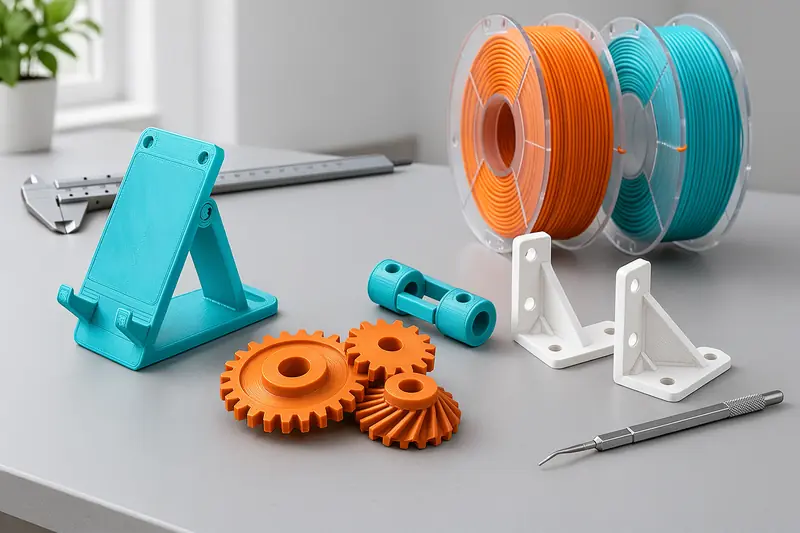
Consumer 3D printing is mostly fused deposition modelling (FDM): a heated nozzle (the small metal tip) melts a plastic thread and lays it down layer by layer on the bed (the surface where the part is built). The simplest plastic to start with is called PLA. You do not need to own the machine to understand this idea or to get a first part.
Print at a public library
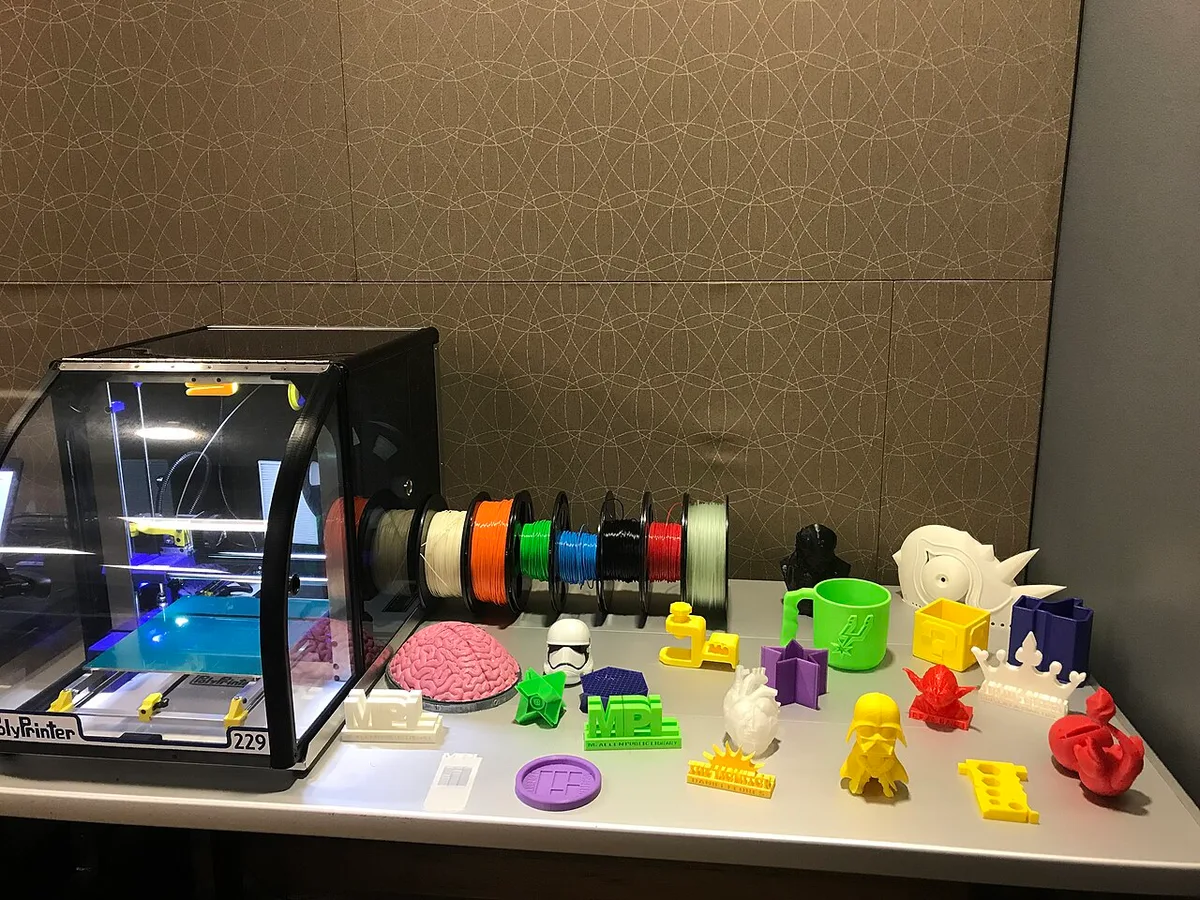
More and more public libraries offer a 3D printer to visitors. Access is often free, or charged only for the filament (the plastic thread on a spool). Ask at the desk: booking a time slot is common, sometimes after a short training session or a supervised first use.
- What to bring: your 3D file already prepared (STL or 3MF formats, explained below), a clear idea of the size in millimetres, and possibly a USB stick if staff ask for one.
- What to ask: which plastic is available (often PLA), how long before you can collect the part, and whether staff can start the print for you or whether you must stay.
Fab labs and makerspaces
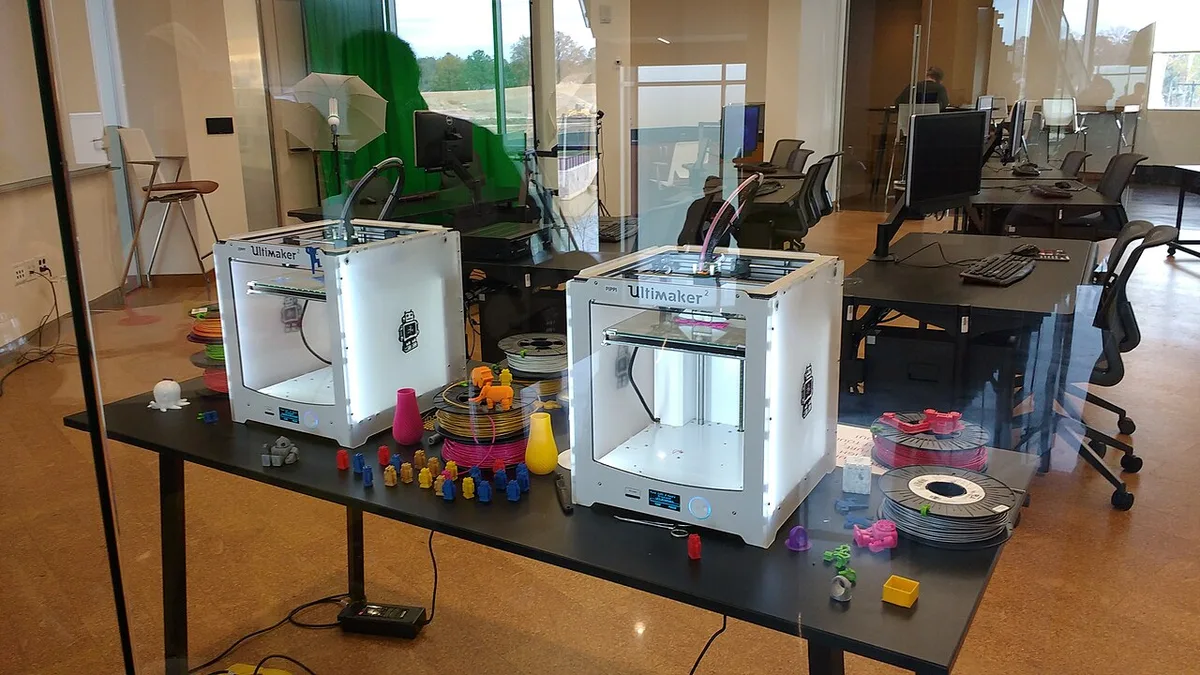
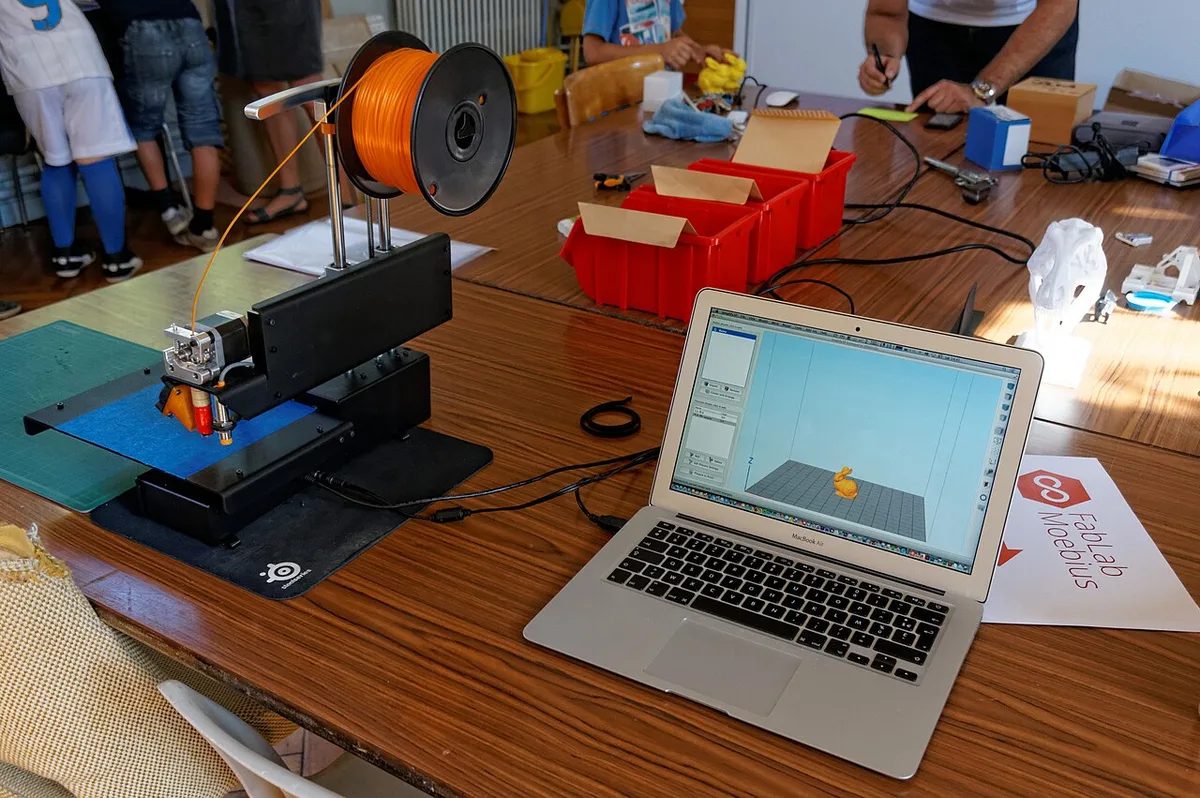
A fab lab (from “fabrication laboratory”) or makerspace is a shared workshop with machines: 3D printers, sometimes laser cutters, milling machines. You often join with a yearly or monthly fee, and a short training session is common before you use a machine alone. You leave with your part, and above all with experience.
To find the nearest place, check the worldwide fab lab map on fablabs.io, or the Makery map. In France, the Réseau Français des Fablabs lists member workshops. In the UK and the US, search for a “makerspace” near you. In Germany, look at FabLabs, makerspaces and open workshops in the Verbund Offener Werkstätten. In Italy, look for local FabLabs. In Spain, besides fab labs, Barcelona has municipal ateneus de fabricació.
Online 3D printing services
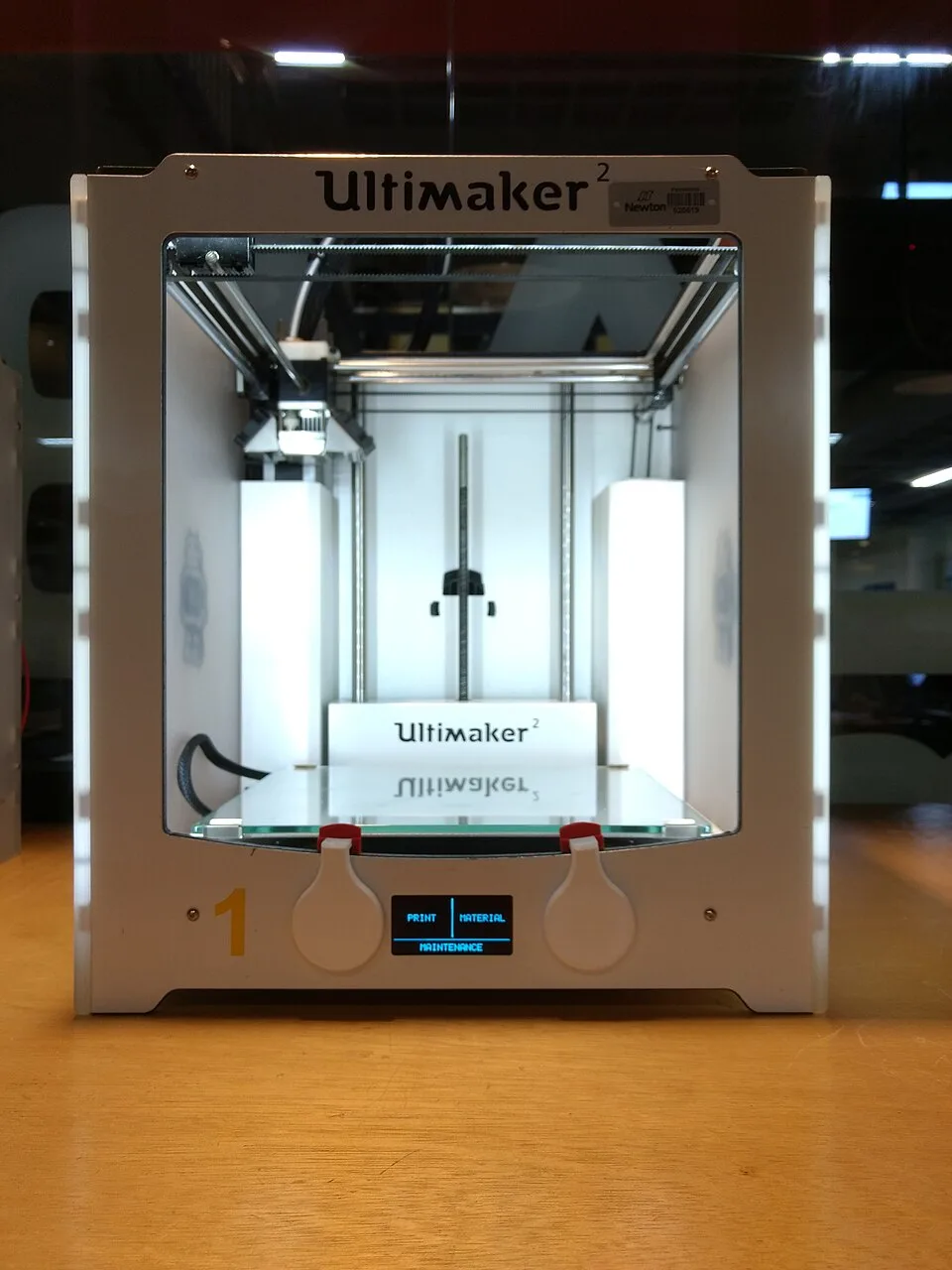
If no library or makerspace is practical near you, you can send your file to an online printing service. You choose the material (PLA, resin, nylon…), you get a quote, then the part arrives by post. Lead times vary with the material, the queue and shipping: often several days, sometimes longer for technical materials.
Among well-known services still active in 2026: Sculpteo, Craftcloud, JLCPCB 3D printing (JLC3DP) and Shapeways. Prices depend on part volume, material and finishing options: always compare the quote shown on the site for your file, and do not rely on a generic figure. A small PLA part can stay affordable; a metal or technical resin part costs much more.
Find free models
You do not have to draw your first object. Model libraries offer files to download: Printables, Thingiverse and MakerWorld (Bambu Lab’s site). Pick a simple object, read the description (recommended plastic, need for supports) and above all the licence: some licences forbid selling printed objects, others ask you to credit the author.
Model your own object for free
If you want a custom object, start in the browser with Tinkercad: you assemble simple shapes (cubes, cylinders, holes) without installing software. When you need precise dimensions, you can move to FreeCAD (free) or Fusion (personal licence free under Autodesk’s terms). The guide getting started with 3D modelling covers that path, file formats and mistakes to avoid on a first drawing.
Prepare and check the file before sending it
The STL format describes the object’s surface as triangles. The 3MF format is newer: it can also carry colours, several objects and units. In both cases, work in millimetres: a part drawn in inches or metres often arrives too small or too large. Put the largest flat face on the bed to limit supports (temporary structures under parts that stick out into empty space).
- Wall thickness: avoid walls thinner than about 0.8 to 1.2 mm for a first part meant for a 0.4 mm nozzle (the tip that extrudes the plastic). Walls that are too thin tear or do not print.
- Overhangs: an overhang is a part that sticks out with no material underneath. Beyond about 45 degrees from the vertical, turn on supports in the slicer.
- Mesh repair: on Windows, the 3D Builder app can still open and repair an STL. The older Microsoft Print 3D app is no longer offered in the Microsoft Store. PrusaSlicer and Bambu Studio also offer automatic repair. Meshmixer remains a known option for cleaning a model, depending on versions still available.
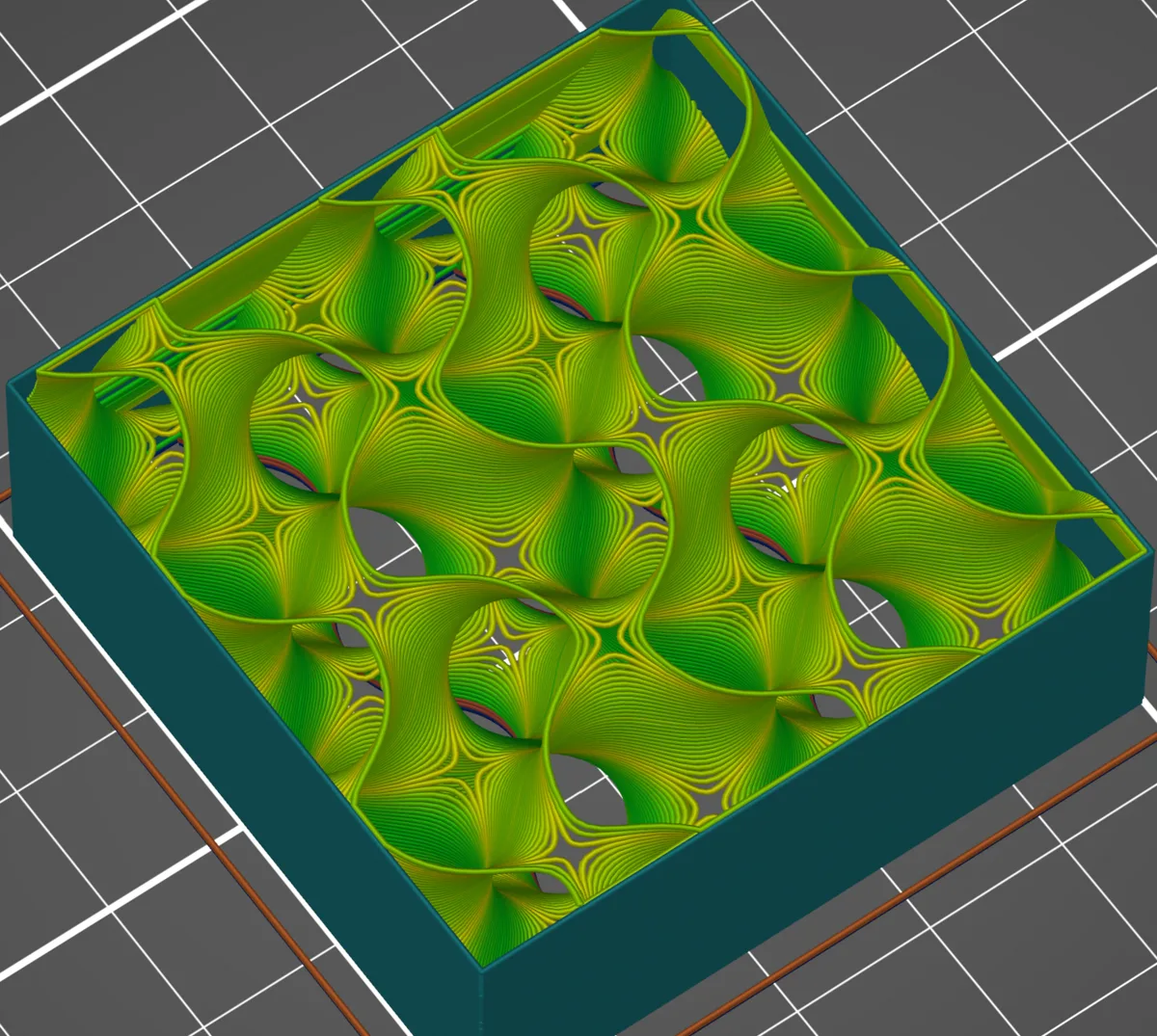
Before sending the file, open it in a free slicer (PrusaSlicer, Cura or OrcaSlicer). Place the part, look at the layer preview, and read the time and material estimate. Infill (how dense the inside of the part is) changes cost and strength a lot: for a first decorative object, low infill is often enough.
When to buy your first printer
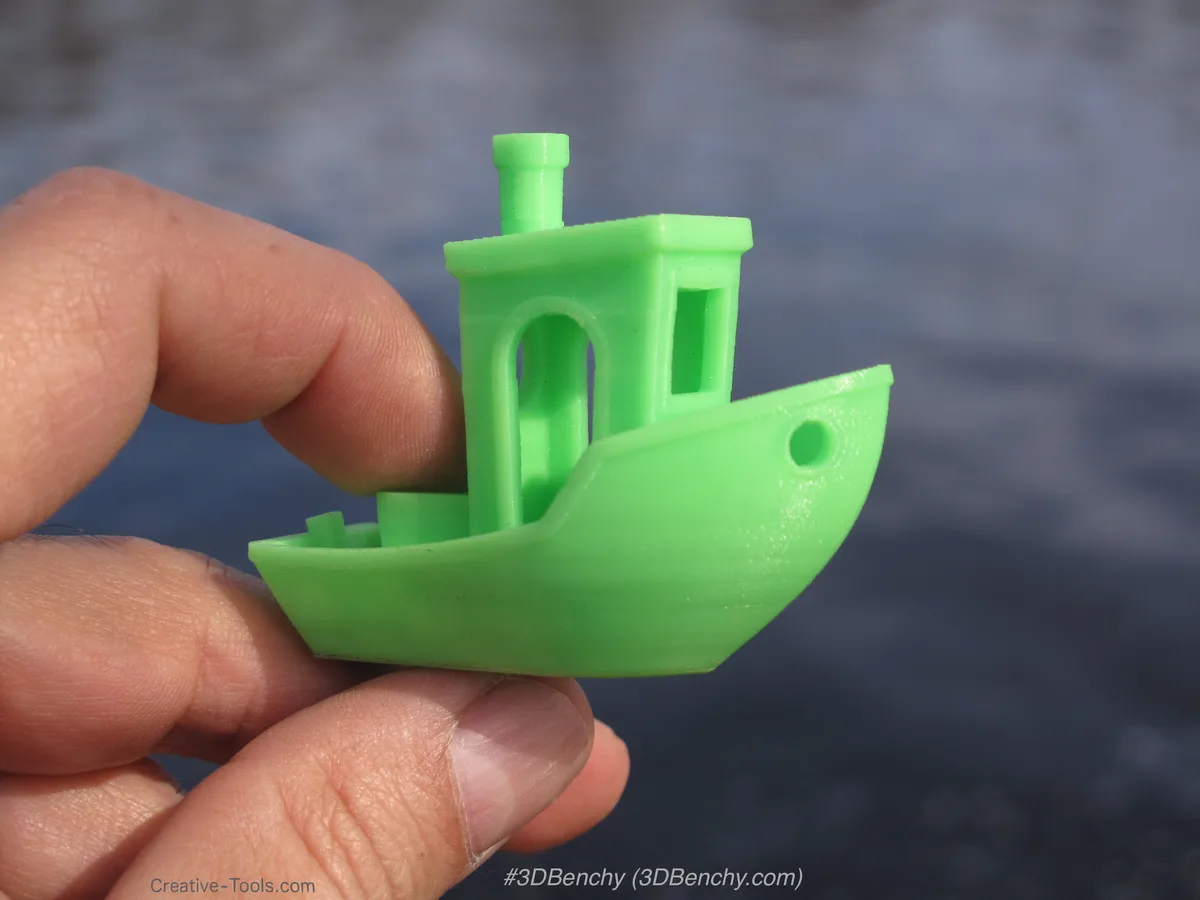
Buying a machine becomes useful when you print several times a month, when library or makerspace slots are no longer enough, or when you want to iterate quickly (fix a hole, reprint the next day). If you have only printed one or two parts, carrying on without a machine at home often remains the simplest choice.
For budget and model, follow which 3D printer for beginners: the guide starts from your project (figurines, sturdy parts, toys…) and what you want to spend. The beginner path then covers setup, slicer settings, modelling and troubleshooting. Prices quoted on those pages come from official European stores and may change.
See the Centauri Carbon 2 at Elegoo · affiliate linkFor readers in the US: US store →
Frequently asked questions
Can I really print without buying a printer?
Yes. Many beginners start at a library, a makerspace or with an online service. You learn the vocabulary and validate your project before investing.
Does the library print for free?
Often access to the machine is free, and you only pay for the plastic used, or nothing at all depending on the venue. Always ask for the local price and rules: they vary from town to town.
Which file format should I send?
STL and 3MF are the most requested. Work in millimetres and check the scale in the slicer before sending. Some venues ask for an already sliced file (G-code or slicer project): ask before you go.
Does Microsoft Print 3D still exist?
No: the app is no longer offered in the Microsoft Store. On Windows, 3D Builder can still open and repair an STL. Free slicers (PrusaSlicer, Bambu Studio, Cura, OrcaSlicer) are also enough to prepare and often repair a file.
Should I start with resin without a machine at home?
For a first try, prefer filament (FDM) and PLA: fewer precautions. Resin printing (the MSLA technique: liquid resin hardened by ultraviolet light) needs gloves, ventilation and washing of parts. Keep it for later, or only if an online service prints it for you.
When is an online service better than a makerspace?
When the journey is long, when you only need one part, or when you need an uncommon material (nylon, metal…). A makerspace remains more educational if you want to learn how to start the machine yourself.
Sources
- https://www.fablabs.io/labs
- https://www.makery.info/map/
- https://www.fablab.fr/
- https://www.offene-werkstaetten.org/
- https://www.sculpteo.com/
- https://craftcloud3d.com/
- https://jlc3dp.com/
- https://www.shapeways.com/
- https://www.elegoo.com/products/centauri-carbon-2
- https://learn.microsoft.com/en-us/windows/whats-new/removed-features
Sources checked on 30 October 2026. Printer prices shown are from official European stores in late October 2026 and may change. Technical figures come from manufacturer sheets and our calculations.
Written by Emmanuel Sauvage · Scan3D Lab
A question about this machine or guide? Ask it here
We read every message and reply by email, usually within a few days.